Home-screen setup
How to add a weather widget on Android
Choose an Android weather widget, add it to your home screen and adjust the layout. See real widget styles from MobileRise weather apps.
A weather widget puts useful forecast information on your home screen. Start by choosing the information you want to see, then add a widget from the app you have installed. A clock, a compact temperature view and a daily forecast each suit a different layout.
Choose the information you want close
Think about what you normally open your weather app to check. For a quick departure from home, current conditions may be enough. If you plan around appointments, a clock or upcoming forecast can be more useful. Choose a layout you can read comfortably against your wallpaper.
These are examples from MobileRise's Android apps. Available designs depend on the installed app version and your home-screen launcher.
| Look or use | Apps to explore |
|---|---|
| Bright neon colors | Weather Neon |
| An analog forecast clock | Weather Rise Clock or Weather Clock |
| A lighter weather interface | Weather Sky Blue |
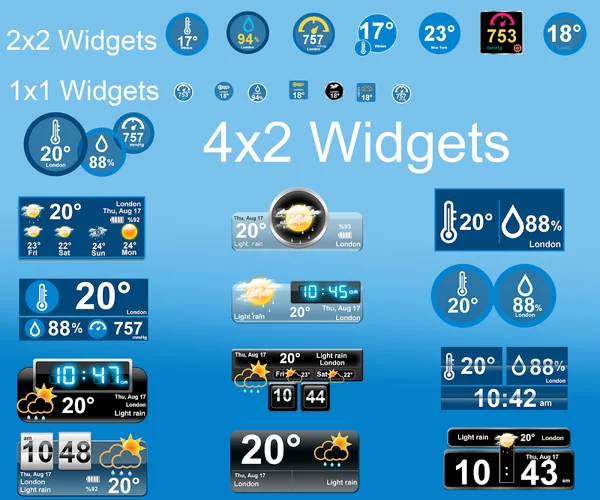
Add the widget to your home screen
Install your chosen app and open it to complete its initial setup. Check the place and units you want before adding its widget.
- Touch and hold an empty area of your Android home screen.
- Open Widgets and find your weather app.
- Expand the app's available widgets, then touch and hold the design you want.
- Drag it to a space on your home screen and release it.
- If the app opens a configuration screen, choose the settings offered there.
Google describes this process in its Android home-screen guide. Menu names and the way you place a widget can differ across Android versions and manufacturers.
Adjust the space and size
Touch and hold the placed widget. If resize handles appear, drag them to change its size, then tap outside it. Some widgets have a fixed layout. If it does not fit, try another widget design or make more space on the home screen.
If the app is missing from the widget picker
Check that you are looking for the installed app's name rather than a weather condition or widget style. Open the app once, return to your home screen and reopen the widget picker. Check the current Google Play listing for the app's available features; the picker only shows widgets that the installed version and launcher expose.
If a widget is present but its weather is old, use the weather widget update checklist. A missing widget and an outdated forecast are different problems, so start with the symptom you can see.